How to "Add disk space to Azure Virtual Machine"
12/24/20251 min read
This document will guide you through on how to add additional storage space to an Azure hosted VM (data disk)
Similar to VMware, Azure has its own unique way to add space.
-- Go to Azure portal i.e. https://portal.azure.com/
-- Search "Virtual machines"
-- Click on the desired VM for which you would like to add space
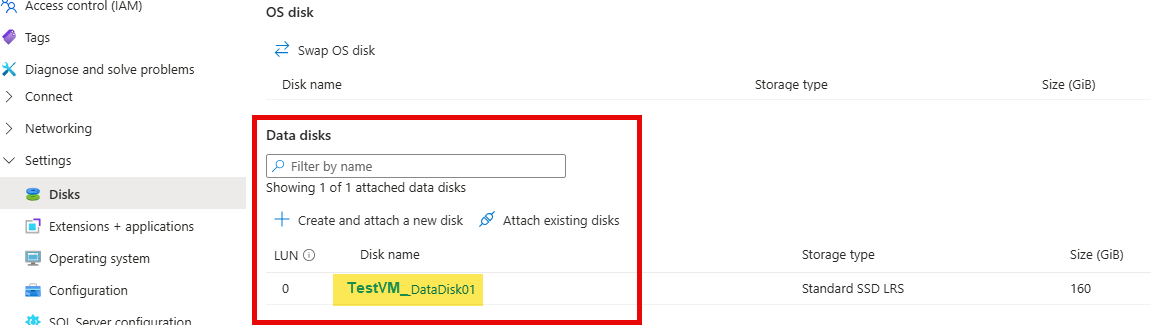
-- Click Disks and click on the data disk you would like to expand.
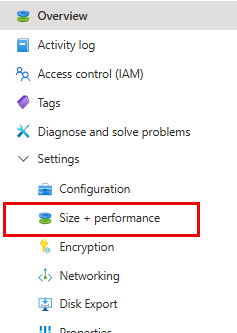
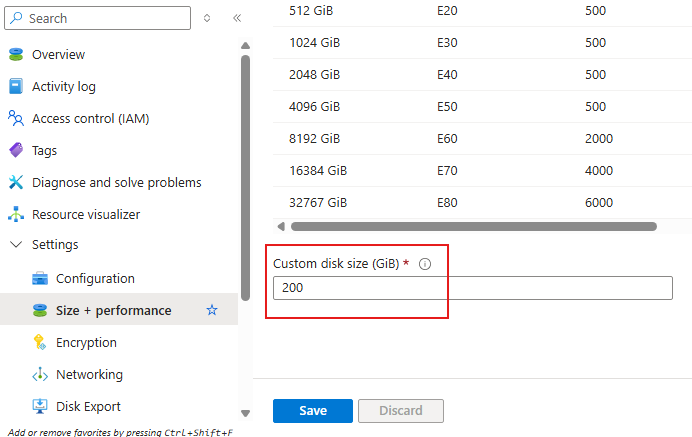
-- Click on "size and performance"
-- Add the space. Ex: if your disk size is currently 160gb and if you would like to make it 200gb, then type 200gb
-- Click Save and wait until the operation gets completed. You can monitor it under the bell icon (top right) of the Azure portal
You will have to expand the disk from OS level now, similar to how you do in VMware
-- Now Login to your Azure VM --> Computer Management --> Disk Management --> Click on the Data disk (here D:\) --> right click Disk Management and Rescan disks --> Right click disk --> extend volume --> next next Finish.
You have successfully added space to your Azure Data disk.
The procedure for OS disk is the same, you'll have to select OS disk instead of data disk in step 3 above.